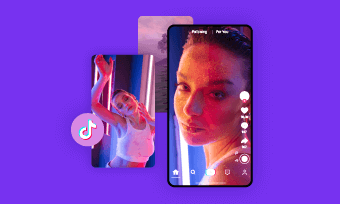
Every social platform has its preferred aspect ratio. For TikTok, it displays onscreen content in vertical, 9:16 format.
For those who want to share YouTube content to TikTok or post daily vlog in widescreen format on TikTok, resizing video to correct TikTok ratios is essential to avoid black bars and ensure a perfect fit, creating a more engaging viewing experience.
But how do you convert a video to TikTok format? Don’t worry — we’ve rounded up the 3 best TikTok video resizers to help you easily turn any video into a vertical format on desktop, online, or even on your mobile phone. Ready to explore them? Let’s get started!
Table of Contents:
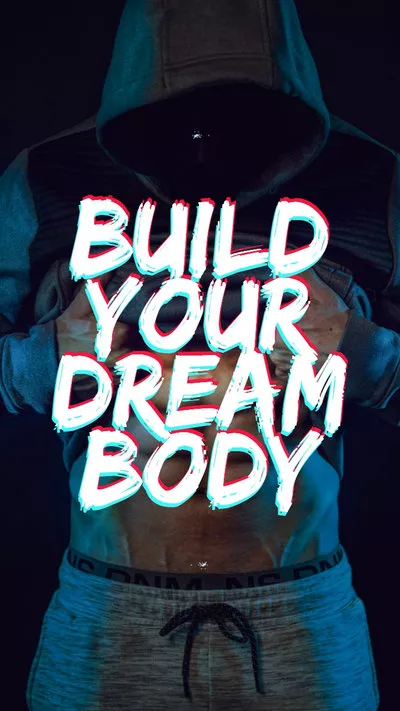
Charming and engaging TikTok video templates for you:


Also interested in: How to Make a Tik Tok Video that Gets Likes>>
FlexClip - AI-powered TikTok Video Resizer
FlexClip is an AI-powered TikTok video resizer that offers multiple ways to convert YouTube, Instagram, or any other videos into TikTok format in just a few clicks.
Beyond basic cropping, it also features advanced tools like AI-powered resizing that keeps the subject centered with face tracking, as well as smart clipping that automatically selects the most share-worthy moments from your original video. These intelligent features help create a more immersive and engaging viewing experience.
No software download or editing experience required. Just open FlexClip's TikTok video sizer in your browser and follow our lead to easily change video into TikTok aspect ratio.

Method 1: Convert Video to TikTok Size by Cropping
The first way to convert a video into TikTok’s vertical format is by cropping it. FlexClip’s built-in video editor supports a wide range of popular aspect ratios, including 16:9, 1:1, 9:16, 4:5, 21:9, 3:4, and 2:1, making it easy to resize videos for different platforms. With just one click, you can instantly transform your video into TikTok’s standard vertical size. Here’s how to do it.
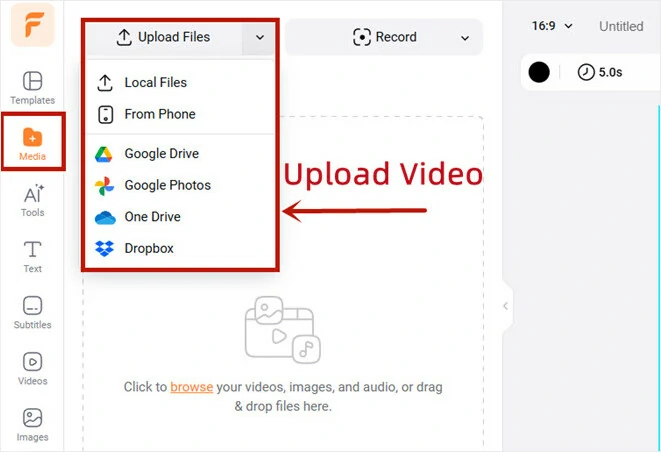
Upload the Video You Want to Resize to FlexClip
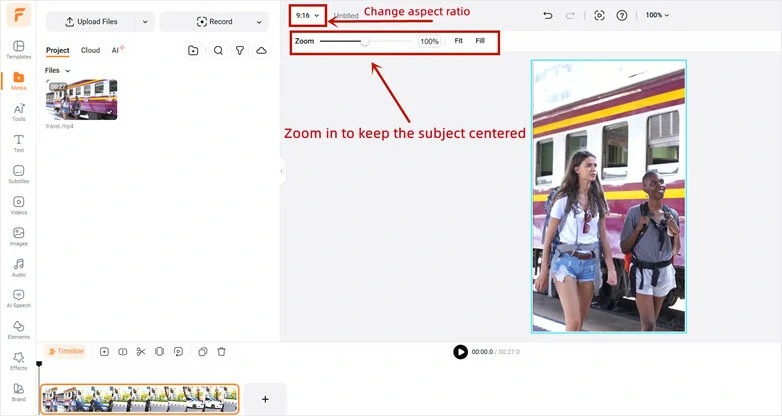
Crop Video into TikTok Video Size
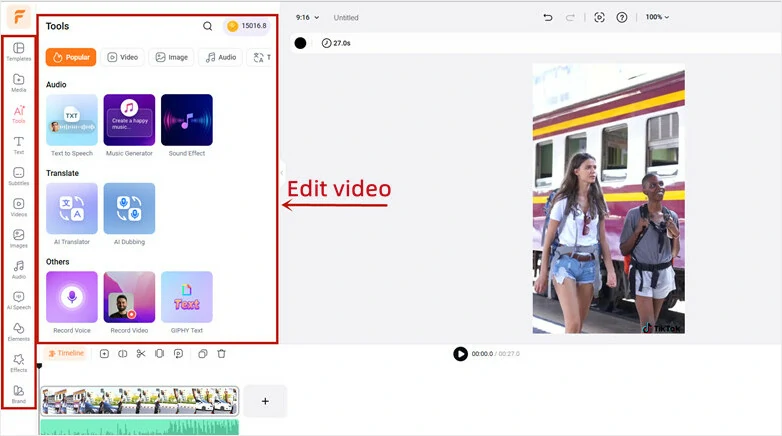
Enhance Cropped Video in FlexClip
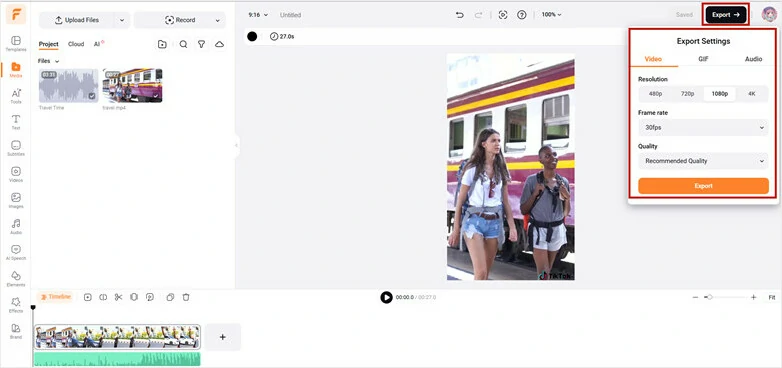
Download and Share Cropped Video on TikTok
Method 2: Resize Video to TikTok Format with Face Tracking
Want to convert a video to TikTok format while keeping the speaker centered across every frame? FlexClip’s AI long-to-short generator makes it easy. It can turn a single long video into multiple viral-ready TikTok clips or convert the entire video into a vertical format while automatically keeping the speaker centered using face tracking. Follow the step-by-step guide below.
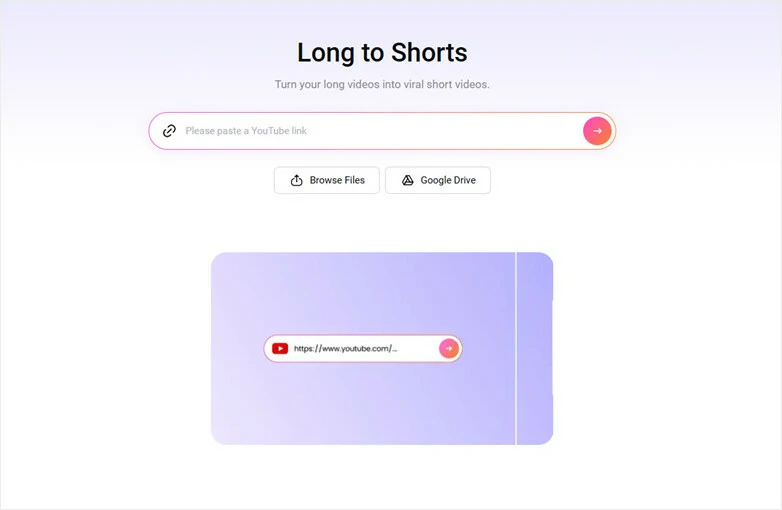
Upload Video to FlexClip's Long-to-short Generator
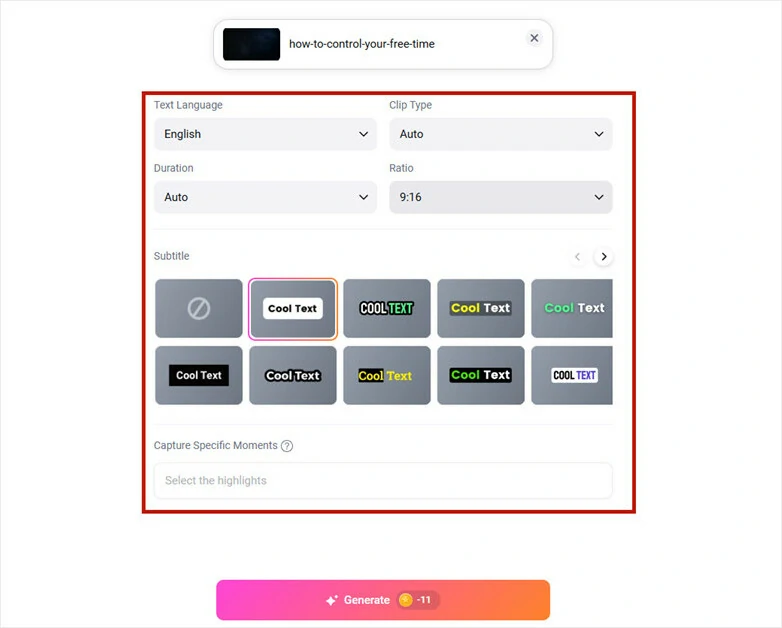
Make Basic Setup of the Upcoming Video
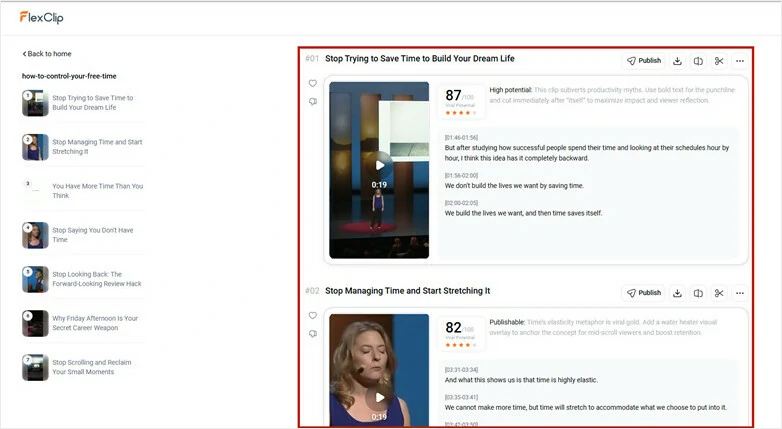
Preview AI-generated TikTok Bite-size Video
Pro Tips:Prefer a fully reframed video instead of short clips? Simply review the script and select the entire duration from start to finish. The AI will then recreate the full video in vertical format, while still keeping face tracking and auto-caption features enabled.
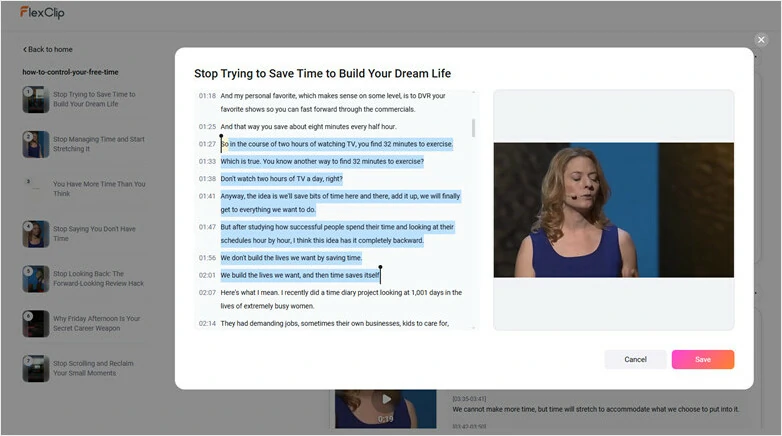
Select the Script as Entire Duration to Get Fully Reframed Video
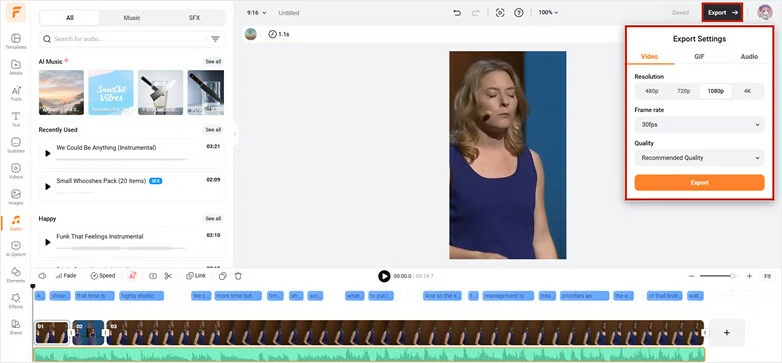
Open Reframed Video in FlexClip's Editor and Share with Ease
Method 3: Resize Video for TikTok Platform by AI Recreate
Prefer a method that not only resizes your video to TikTok format but also enhances it with aesthetic designs? FlexClip’s AI Recreate feature is exactly what you need. Powered by a template-based workflow and advanced AI, it analyzes your uploaded content, reimagines your assets, and automatically adds relevant text, effects, and styling that match your theme and story. No editing experience required. Here’s how to get started.
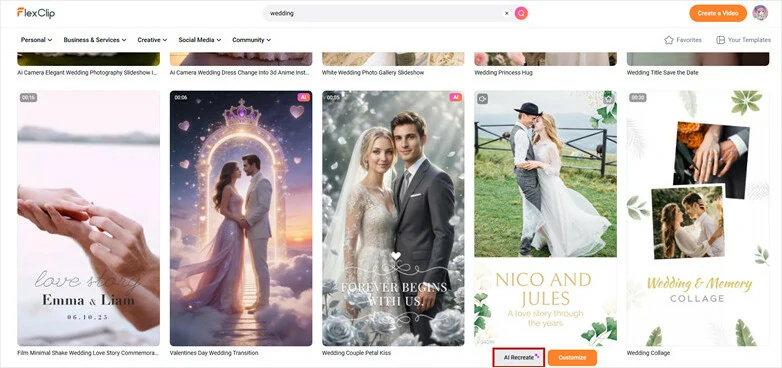
Browse FlexClip's Extensive Template Library and Pick Preferred One
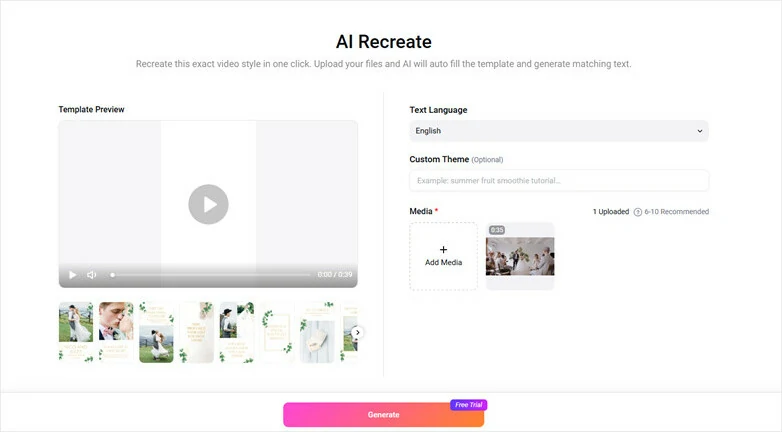
Upload Files and Recreate TikTok Video
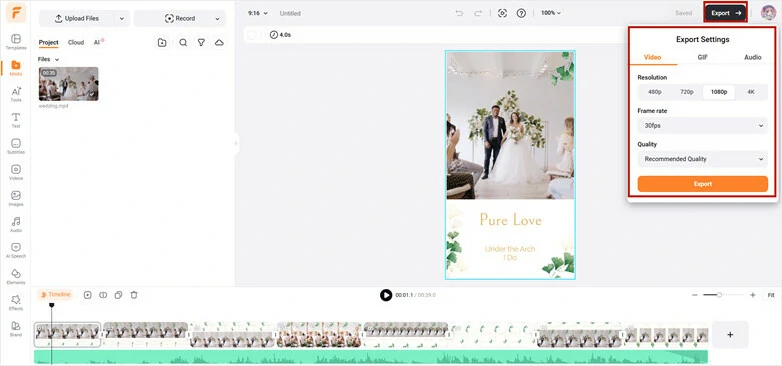
Preview, Edit and Share Creative TikTok Video
Bonus Tips: FlexClip is more than just a tool for resizing videos for TikTok—it also works as an AI TikTok video generator that helps bring your creative ideas to life. Whether you want to animate old photos for storytelling, create eye-catching face-morphing effects, or generate imaginative TikTok videos from text, FlexClip offers fast and simple solutions. Explore FlexClip and start creating today!
Unleash Creativity with FlexClip's AI TikTok Video Generator
CapCut - Free Way to Resize Video for TikTok on Desktop
CapCut is a popular video editor developed by ByteDance, the company behind TikTok, that lets you create and edit videos on desktop. To convert a video to TikTok size, it offers a simple free option—just one click to switch your video into TikTok format. Follow our step-by-step guide below to get started.
Resize Video for TikTok on Desktop with CapCut
Inshot - Popular Tool to Convert Video to TikTok Size
InShot is an all-in-one mobile video editor designed for creating content for TikTok, YouTube, and Instagram. With support for multiple aspect ratios across different social platforms, it’s also a convenient tool for converting videos to TikTok size. Follow the guide below to learn how to resize a video to TikTok format using InShot.
Resize Video for TikTok on Mobile Using Inshot
The Bottom Line
As you can see, to come out with a perfect resized video, you need a perfect video resizer. This is why you need to consider using FlexClip: the best tool for resizing Tiktok videos. Finally, you can also deploy this tool to add speed, filters, or emojis to your videos. Give it a try!




FlexClip AI Video Maker
Reach professional-quality videos faster with easy editing tools, templates, and smart AI.
Start Now for Free
Hot & Trending
-

Best Ways to Find Music in YouTube Videos
-

Instagram Story Video Quality Bad After Upload? Fix It!
-

How to Repost Video on TikTok & How to Remove TikTok Repost
-

Improve Video Quality Online: 3 AI Video Quality Enhancers You Can't Miss
-

4K Convert to HD 1080p without Watermark: Best 4k Video Converters
-

Best 8 Free Video Editors - No Download Required
-

Top 13 Birthday Video Makers with Music and Effects Free
-

How to Search Filters on TikTok & Use a Filter You See - TikTok Filter Guide